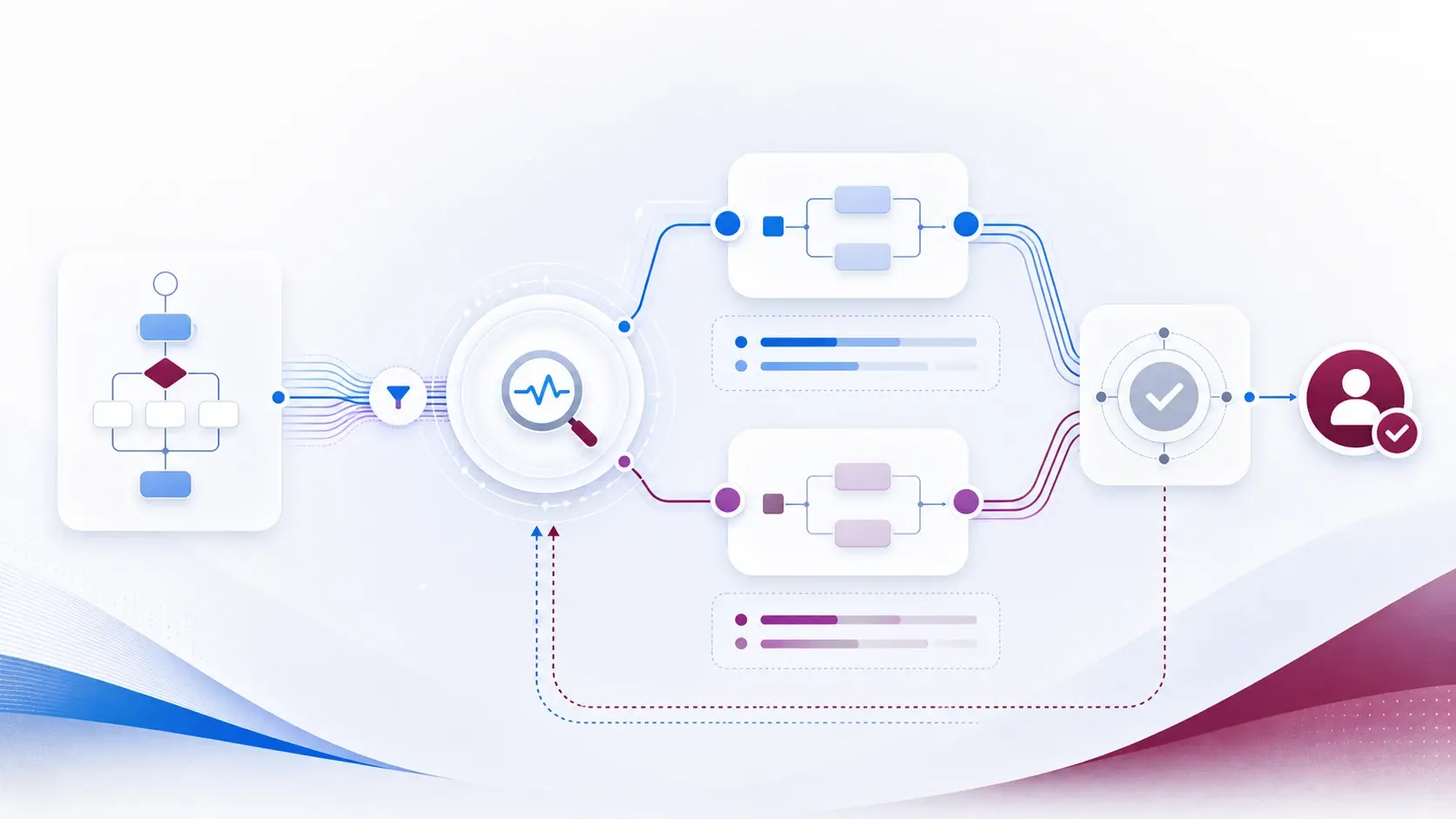
Optimise a Power Automate flow with Microsoft's MCP skills
"Make this flow faster" is a bad prompt. A better one starts with evidence: which part is slow, noisy, expensive or hard to support? The Power Automate MCP skills give an assistant access to run history, connections and environment context, which is exactly what optimisation needs.
The flow definition alone rarely shows a performance problem. You need the trigger, action inputs and outputs, run history and connection state. The FlowAgent MCP server, used from tools such as GitHub Copilot and Claude Code, can bring those together. For how the same tools build a flow from scratch, see the companion article.
Step 0: a baseline
Before touching anything, write down:
- how often it triggers and how long it takes on average;
- the number of actions;
- how much data list and table queries return;
- failed runs, and the outcome the flow is meant to produce.
Then give the assistant a short brief: flow name, environment, constraint, target and the evidence. Ask it to name likely bottlenecks and explain the change before editing.
Four places to look
1. Too much data
List rows, table queries and connector actions often return far more fields or records than the next step needs. Microsoft's guidance is to retrieve only the relevant data; it improves performance and reduces throughput pressure. Ask for a filter, selected columns or an earlier condition, then check the expression yourself. A smaller payload only counts if the result is still complete.
2. Work done in sequence that does not need to be
Actions that do not depend on each other can run in parallel, but Microsoft also warns that concurrency must not overwhelm the system. Ask the assistant to identify safe branches, then check ordering, shared variables and connector limits. Never parallelise updates that can conflict.
3. Repeated failures
Give it one failed action with its status and inputs from a test run, and compare its explanation with Microsoft's troubleshooting guidance. The usual causes are null values, invalid expressions, expired connections, wrong dynamic content and polling behaviour.
4. Hidden noise
Run history is evidence, not a full performance model. Retention, polling intervals, throttling and temporary service conditions all affect what you see. Standard run-history visibility is limited; Dataverse-based flow-run management has its own retention settings.
One change at a time
Save the original definition or solution version. Apply a single change in test, run the same case, and compare duration, action count, data volume, result and failure behaviour. If it helped, write down why. If not, roll back — do not let the assistant keep making edits nobody measured.
For parallel changes, also test duplicates, retries and partial failures. And before production, confirm connections, ownership, permissions, environment variables, error handling and rollback.
MCP is most valuable after a flow exists. The first version is easy to demo; making it predictable and cheap to run is the real work. Speed without traceability is just a faster way to create technical debt.
A good first candidate is a flow with a clear complaint. Take three representative runs, remove sensitive values, ask for an evidence-based plan, and try just one change.
Sources
References used for this article. Links open in a new tab.
- GitHub — microsoft/power-platform-skills: A plugin marketplace for GitHub Copilot and other AI agents that provides Power Platform development…
- GitHub — microsoft/power-platform-skills: plugins/power-automate/README.md
- YouTube — video
- Microsoft Learn — Work only with relevant data
- Microsoft Learn — Optimize flows with parallel execution and concurrency
- Microsoft Learn — Troubleshoot cloud flow errors
- Microsoft Learn — Manage cloud flow run history in Dataverse
- Microsoft Learn — Understand flow failure notifications in Power Automate
- LinkedIn — howdangrashid (profile)