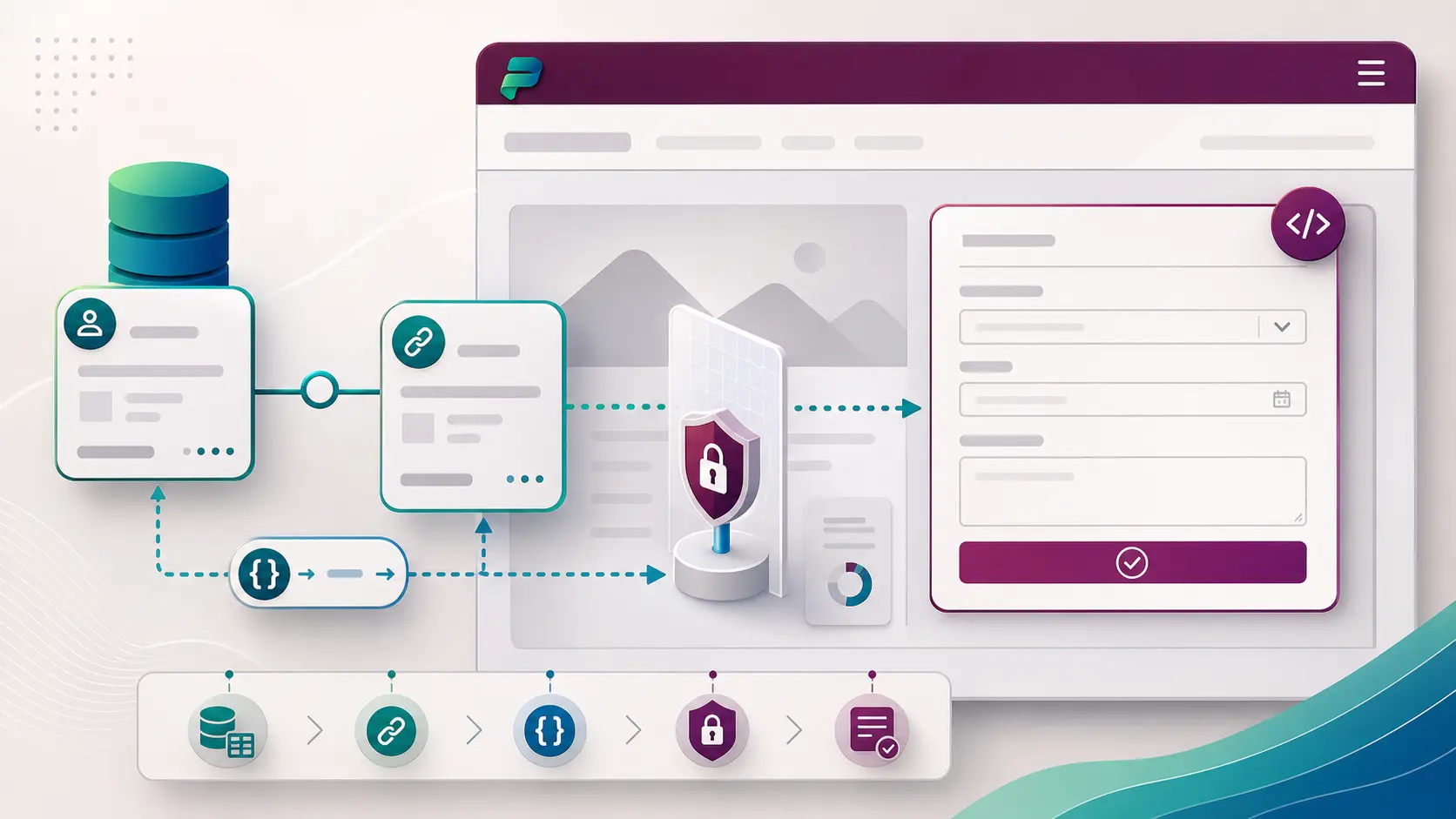
Power Pages lookups and custom forms: connect the page to Dataverse without losing control
A portal becomes genuinely useful when it understands relationships: a request linked to an account, a case linked to a contact. This is a practical walkthrough of two pieces that make that work — lookup queries through the Web API, and forms designed for external visitors.
How lookups work in the Web API
The portals Web API exposes data operations through the /_api route. A lookup column has two sides: the stored value and a navigation property. To return related fields in one call, you query with $expand on the navigation property.
For example, to get account names with their primary contact:
/_api/accounts?$select=name&$expand=primarycontactid($select=contactid,fullname)Microsoft's documented approach is to check the column metadata using the lookup value naming convention, such as _primarycontactid_value, and then use the associated navigation property. Do not guess the name.
Forms are a design decision
Power Pages forms are based on Dataverse table forms. I usually keep the table and its ownership stable, and create a page-specific form that only asks for what an external visitor can reasonably provide. It writes to the same table, but its labels, required fields and error messages are written for the visitor, not for internal staff.
How to implement it
- Define the relationship. Name the base table, lookup column, related table and exact fields. Find the table's EntitySetName for the URL.
- Enable only what you need. Add
Webapi/<table>/enabledand an explicitWebapi/<table>/fieldsfor each table involved, following the hardening guidance. - Build the query narrow. Start with a small
$select, add$expand, and test the response with the same web role the page will use. - Shape the form in Dataverse. Copy or create the table form, remove internal fields, set friendly labels and validation, and publish.
- Add the form to the page, choose the data operation, and set table permissions for the right web role. For anonymous forms, double-check the permission does not expose existing records.
- Test the whole journey: empty relationships, invalid input, duplicate submissions, attachments, and a user without permission.
Where it goes wrong
- Assuming a lookup grants access. The related table needs its own table permission; a visitor may read the parent but not the related record.
- Treating 401 and 403 responses as errors to work around in JavaScript. They are permission or session signals.
- Relying on a hidden field or a client-side filter as the security boundary.
Before writing the query, I ask why the visitor needs the related record and what they are allowed to know. Shaping the page around that answer usually gives a simpler page and a safer permission model.
A practical next step
Sketch one visitor journey on paper: the starting record, the lookup they need, the fields they submit and the role that should see each record. Build the read query first, then the form, and test both as an anonymous and a signed-in user before adding any styling.
Sources
References used for this article. Links open in a new tab.